Best Productivity Apps to Work Smarter
The best productivity apps can help you organise tasks, manage your time, take notes, reduce distractions and keep important work in one place. But there is no single app that works perfectly for everyone.
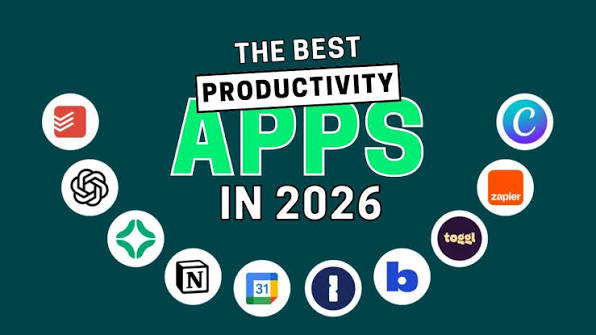
For most people, the right choice depends on the problem they want to solve. Todoist and Microsoft To Do are useful for task management, Notion is flexible for notes and organised workspaces, Trello is well suited to visual project management, Google Calendar helps with scheduling, and Forest can make focused work sessions more engaging. The key is not to install dozens of productivity apps. Pick a small set that fits your workflow and use them consistently.
Best Productivity Apps at a Glance
| App | Best For | Main Use |
|---|---|---|
| Todoist | Task management | To-do lists and projects |
| Microsoft To Do | Simple task lists | Personal tasks and reminders |
| Notion | All-in-one organisation | Notes, databases and projects |
| Trello | Visual planning | Boards and project workflows |
| Google Calendar | Scheduling | Events and time blocking |
| OneNote | Note-taking | Digital notebooks |
| Evernote | Notes and information | Notes and document organisation |
| Forest | Focus | Distraction-free work sessions |
| TickTick | Tasks and planning | Tasks, habits and productivity |
| Obsidian | Connected notes | Knowledge management |
Features, pricing and plan limits can change, so check each app’s current offering before making a purchase.
What Makes a Productivity App Useful?
A productivity app should solve a real problem rather than create another layer of work.
Useful features may include:
- Task management
- Reminders
- Calendar integration
- Notes
- Project organisation
- Collaboration
- Search
- Recurring tasks
- Time tracking
- Focus tools
- Cross-device synchronisation
The best app for you is the one you will actually use.
A sophisticated project-management system is not helpful if it takes longer to maintain than the work itself.
Todoist
Todoist is a popular task-management app designed around lists, projects and deadlines.
You can create tasks, organise them into projects and use priorities to identify what needs attention.
Why use Todoist?
It can be useful if your main problem is remembering what needs to be done.
For example, you could create separate projects for:
- Work
- Personal tasks
- Website management
- Study
- Household tasks
Instead of keeping everything in your head, you have a central place to record commitments.
Best for: People who want a straightforward but capable task manager.
Microsoft To Do
Microsoft To Do focuses on simple task management and integrates naturally with Microsoft’s ecosystem.
It is a good option if you want to maintain daily task lists without building a complicated productivity system.
A simple workflow
Each morning:
- Review your tasks.
- Choose the most important items.
- Add realistic deadlines where needed.
- Complete tasks throughout the day.
- Move unfinished work to an appropriate future date.
Best for: Personal task lists and people already using Microsoft services.
Notion
Notion is a flexible workspace that combines notes, documents, databases and project organisation.
It can be used for many different workflows.
For example, a content creator might use Notion to manage:
- Article ideas
- Editorial calendars
- Research notes
- Publishing schedules
- Content checklists
Students can also use it for class notes, study planning and project organisation.
The flexibility is its biggest advantage, but it can also become complicated if you spend too much time designing your workspace.
Best for: Users who want an adaptable workspace rather than a traditional task list.
Trello
Trello uses boards, lists and cards to organise work visually.
A simple board might contain:
Ideas → To Do → In Progress → Review → Completed
Each card can represent an individual task or project.
This visual approach makes it easy to understand the current state of a project.
Who should use Trello?
It can work particularly well for:
- Content teams
- Marketing projects
- Software projects
- Event planning
- Personal projects
- Small teams
Best for: Visual project management.
Google Calendar
A calendar is one of the simplest productivity tools, but many people use it only for meetings.
Google Calendar can also be used to protect time for important work.
For example, instead of writing:
“Work on article”
you can reserve a specific period in your calendar for writing.
This approach is often called time blocking.
Example
9:00–10:00: Writing
10:00–10:15: Break
10:15–11:00: Research
11:00–11:30: Email
The exact schedule is less important than giving important work a defined place in your day.
Best for: Scheduling, appointments and time blocking.
Microsoft OneNote
Microsoft OneNote is a digital notebook designed for organising notes into notebooks, sections and pages.
It can be useful when your work involves collecting information over time.
You might create sections for:
- Meetings
- Research
- Ideas
- Projects
- Personal notes
- Study material
Its notebook structure can be easier to understand than a more database-oriented productivity system.
Best for: Digital note-taking and information organisation.
Evernote
Evernote is designed around capturing and organising information.
It can be useful when you collect many different types of notes and reference material.
For example, you might save:
- Meeting notes
- Research
- Web information
- Documents
- Personal ideas
- Checklists
Its usefulness depends heavily on how you organise and retrieve your information.
Best for: People who need a dedicated digital note and information-management tool.
Forest
Forest takes a different approach to productivity.
Instead of focusing primarily on task lists, it encourages users to concentrate for a set period while avoiding distractions.
A focus session is represented visually by growing a virtual tree.
This can make a simple focus timer feel more engaging.
Best for: People who struggle with phone distractions during focused work.
TickTick
TickTick combines task management with additional planning and productivity features.
Depending on the current version and plan, users can work with tasks, reminders, calendars and other organisation features.
It can be useful if you want more than a basic to-do list but do not want to build a fully customised workspace.
Best for: Users looking for a broader task and planning system.
Obsidian
Obsidian is a note-taking and knowledge-management application built around linked notes.
Instead of organising information only through folders, you can connect related ideas.
For example:
Artificial Intelligence → Machine Learning → AI Tools → Productivity
This approach can be useful for researchers, writers, students and people building a personal knowledge base.
Best for: Connected notes, research and long-term knowledge management.
How to Choose the Best Productivity App
Before downloading an app, identify the problem you are trying to solve.
Need to manage tasks?
Try a dedicated task manager such as Todoist or Microsoft To Do.
Need to organise lots of information?
Notion, OneNote, Evernote or Obsidian may be more suitable.
Need visual project management?
Trello can make project stages easier to understand.
Need better time management?
Google Calendar can help you schedule important work.
Need fewer distractions?
A focus-oriented tool such as Forest may be useful.
Should You Use One Productivity App or Several?
You do not necessarily need to choose only one.
A simple combination can work well.
For example:
- Google Calendar: Time and appointments
- Todoist: Tasks
- Notion: Long-term notes and projects
- Forest: Focus sessions
However, adding more apps also adds more maintenance.
If you have to update four different systems for every task, your productivity setup may be too complicated.
How to Build a Simple Productivity System
You can create a useful system with just three components.
Capture
Have one place where you record new tasks and ideas.
Schedule
Use your calendar to decide when important work will happen.
Focus
During the scheduled period, remove unnecessary distractions and work on one priority.
For example:
Task: Write a blog article
Calendar: 9:00–10:30 AM
Focus: Phone notifications off
Result: Complete the first draft
This is often more useful than constantly searching for new productivity techniques.
Productivity Apps for Students
Students often need a combination of task management, notes and scheduling.
A simple setup could include:
- Calendar for classes and deadlines
- OneNote or Notion for notes
- Todoist or Microsoft To Do for assignments
- A focus timer for study sessions
The goal is to make deadlines visible without creating a complicated system.
Productivity Apps for Remote Workers
Remote workers may need tools for both personal organisation and collaboration.
A practical setup can include:
- Calendar for meetings
- Task manager for individual work
- Team project software for shared tasks
- Notes app for documentation
- Focus tool for uninterrupted work
Keep work and personal systems separate where appropriate, especially when your employer has specific security or data-handling requirements.
Common Productivity App Mistakes
Installing too many apps
More apps do not automatically mean more productivity.
Constantly redesigning your system
Spending hours choosing colours, templates and categories can become procrastination.
Tracking everything
You do not need a database for every part of your life.
Ignoring your calendar
A long task list does not tell you when the work will actually happen.
Forgetting to review tasks
An outdated task list quickly becomes less useful.
Tips for Getting More From Productivity Apps
Keep your task list realistic
Do not schedule more work than you can reasonably complete.
Use priorities carefully
If everything is marked as urgent, nothing is truly prioritised.
Review regularly
Spend a few minutes each day checking your tasks and calendar.
Automate repetitive work
Where appropriate, use recurring tasks, reminders and integrations rather than recreating the same information manually.
Protect your data
Before storing sensitive information, check the app’s privacy policy, security controls and account settings.
Avoid placing passwords, authentication codes or highly sensitive personal information into a productivity app unless you specifically understand how that information is protected.
Frequently Asked Questions
What is the best productivity app?
There is no single best productivity app for everyone. Todoist is useful for task management, Notion for flexible organisation, Trello for visual projects and Google Calendar for scheduling.
Which productivity app is best for students?
Students can benefit from a combination of a calendar, task manager and note-taking app. The right choice depends on whether their biggest challenge is deadlines, assignments, notes or focus.
Are productivity apps really useful?
They can be, particularly when they solve a specific problem. An app cannot replace good priorities or consistent habits, but it can make planning and organisation easier.
How many productivity apps should I use?
Use as few as necessary. A small system that you consistently maintain is usually easier to manage than a collection of overlapping apps.
Are free productivity apps enough?
For many everyday users, free plans can provide enough basic functionality. More advanced features may require a paid plan, so compare current plans before subscribing.
Conclusion
The best productivity apps are not necessarily the apps with the longest feature lists. They are the tools that make your daily work easier without creating unnecessary complexity. Choose an app based on the problem you want to solve. Use a task manager for tasks, a calendar for time, a notes app for information and a focus tool when distractions are getting in the way. Most importantly, start small. A simple system that you use every day is far more valuable than a complicated productivity setup that you abandon after a week.