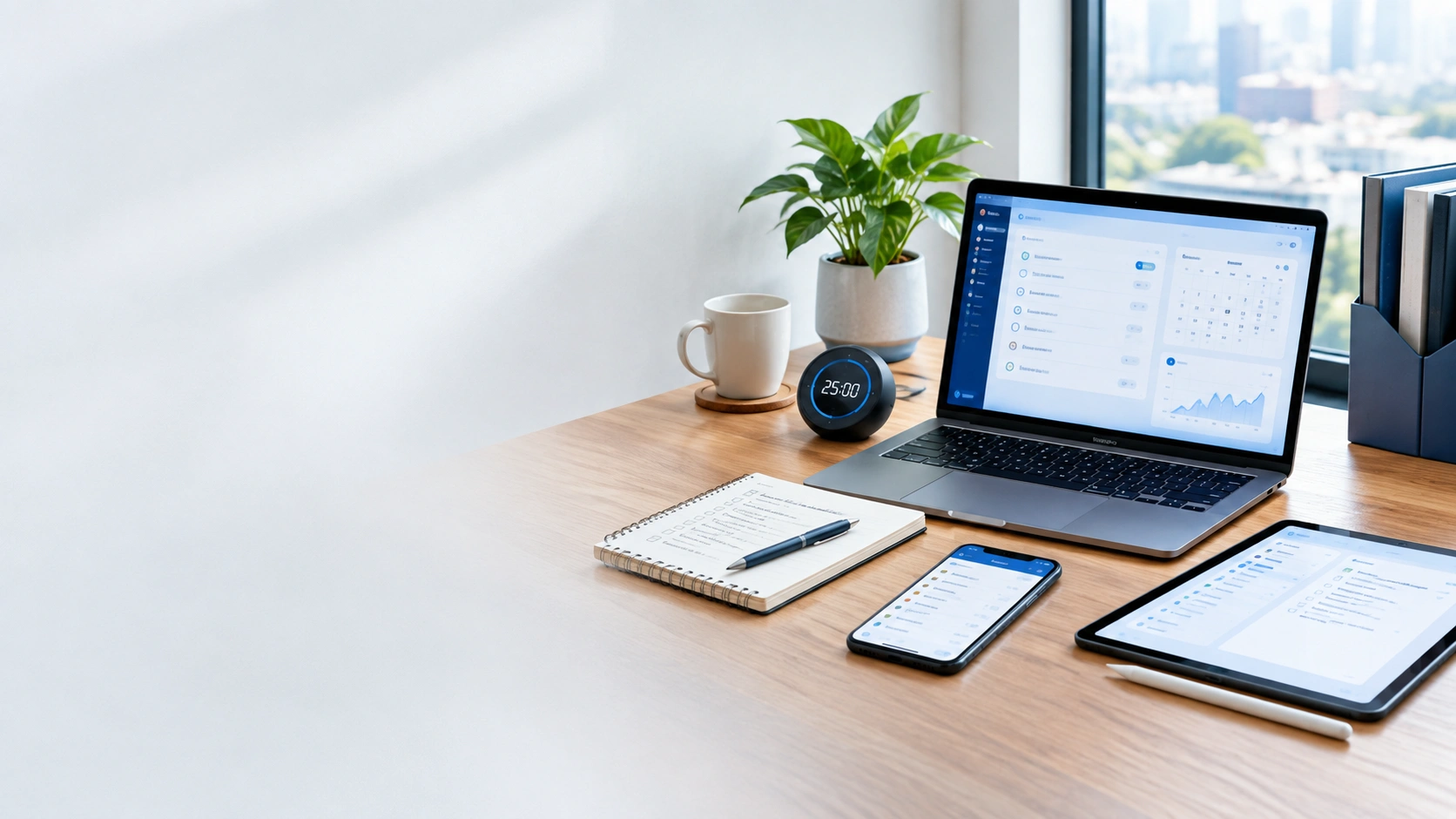
Best Apps for Productivity Tips – Easy Guide
Best Apps for Productivity Tips: A Practical Guide
Staying productive is not always about working longer. It is often about planning better, reducing distractions, and knowing what to do next. The right app can make this easier. From simple to-do lists to calendars, note apps, project tools, and focus apps, there are many ways to build a better daily workflow. But you do not need ten different apps to become more productive. The goal is to find a small set of tools that fits the way you work. In this guide, we explore some of the best apps for productivity tips, how they can help, and how to choose the right ones for your needs.
What Are the Best Apps for Productivity?
The best productivity app depends on your work style. Some people need a simple task list. Others need a calendar, project board, note system, or focus timer.
Here are some common types of productivity apps:
- Task management apps
- Calendar apps
- Note-taking apps
- Project management apps
- Focus apps
- Time-tracking apps
- Cloud storage apps
- Team collaboration apps
Instead of using every type, start with the one that solves your biggest problem. For example, if you often forget tasks, use a task app. If your day feels too busy, try a calendar. If distractions are your main problem, a focus tool may help.
Microsoft To Do for Simple Task Lists
Microsoft To Do is useful for people who want a simple way to manage daily tasks. It lets you create lists, add due dates and reminders, break large tasks into smaller steps, and organize work across devices. Microsoft also provides a My Day feature for planning daily tasks.
Why use it?
Microsoft To Do can be useful if you want to:
- Plan your day
- Create personal task lists
- Set reminders
- Break large tasks into steps
- Keep work and personal tasks separate
- Sync tasks across devices
Productivity tip
Do not fill your daily list with twenty tasks. Start with the few tasks that matter most. Then add smaller tasks if you have time.
Todoist for Flexible Task Management
Todoist is designed around tasks, projects, priorities, labels, reminders, and recurring work. It can also connect with other tools, including calendars and email services. Its current features include different project views, subtasks, recurring tasks, filters, and integrations.
Why use it?
Todoist can work well when you have many tasks and projects to manage.
You can create separate projects for:
- Work
- Study
- Personal goals
- Content creation
- Client work
- Home tasks
Productivity tip
Give each task a clear action.
Instead of writing:
Website
Write:
Update the website homepage
The second task tells you exactly what needs to happen.
Google Tasks for Google Users
Google Tasks is a simple choice for people who already use Google’s ecosystem. Google Tasks works with services such as Gmail and Google Calendar. Tasks can have due dates, reminders, subtasks, and recurring schedules.
Why use it?
It can be helpful when your work already happens inside Google services.
For example:
- You receive an important email.
- You turn it into a task.
- You add a due date.
- The task can appear in your calendar.
- You complete it when the work is done.
This keeps your email, tasks, and schedule connected.
Calendar Apps for Better Time Management
A task list tells you what to do. A calendar helps you decide when to do it. That difference matters. You may have ten important tasks, but you still have only a limited number of hours each day. Use your calendar to block time for important work.
For example:
| Time | Activity |
|---|---|
| 9:00–10:00 | Main work |
| 10:00–10:15 | Break |
| 10:15–11:15 | Project work |
| 11:15–11:45 | |
| 11:45–12:30 | Research |
You do not need to plan every minute. Leave some open time for unexpected work.
Note-Taking Apps for Ideas and Information
Ideas can appear anywhere. You may think of a blog topic while traveling, find useful information during research, or need to save notes from a meeting. A note-taking app gives you one place to keep this information.
Popular choices include:
- Microsoft OneNote
- Google Keep
- Apple Notes
- Notion
The best choice depends on how much structure you need. If you want quick notes, a simple app may be enough. If you manage large projects, research, or content plans, a more structured workspace may be useful.
Productivity tip
Do not create too many folders. A simple system is easier to maintain.
For example:
- Ideas
- Work
- Personal
- Reference
That may be enough.
Trello for Visual Project Management
Trello uses boards, lists, and cards to help organize projects visually.
A simple board can have three lists:
To Do → Doing → Done
You can then move cards as work progresses.
This approach is useful for:
- Content planning
- Website projects
- Marketing tasks
- Team work
- Personal projects
Example
Suppose you run a website.
Your board might contain:
To Do
- Find article topics
- Research keywords
- Create content plan
Doing
- Write article
Done
- Publish article
The visual layout makes progress easy to see.
Focus Apps for Fewer Distractions
Sometimes the problem is not poor planning. It is distraction. Messages, social media, email, videos, and constant notifications can make it hard to stay focused. A focus app can help you create a period of uninterrupted work.
One simple method is:
- Pick one task.
- Set a short work period.
- Remove distractions.
- Work only on that task.
- Take a short break.
- Repeat.
You can also use your phone’s built-in focus or notification controls. The important part is not the timer itself. It is giving one task your full attention.
Time-Tracking Apps
Time tracking can help you understand where your work hours go.
This can be especially useful for:
- Freelancers
- Remote workers
- Consultants
- Developers
- Designers
- Content creators
Track the time you spend on different types of work for a few days. You may discover that a task you expected to take one hour often takes two. That information can help you plan more realistic schedules.
Cloud Storage for Easy File Access
Productivity is also about finding your files quickly. Cloud storage services can help you keep documents and other files available across devices.
Common options include:
- Google Drive
- Microsoft OneDrive
- Dropbox
Create a simple folder structure.
For example:
Work
- Projects
- Documents
- Images
- Reports
Avoid creating dozens of nested folders unless you really need them. A simple structure makes files easier to find.
Team Apps for Collaboration
If you work with other people, personal productivity is only part of the picture. Your team also needs a clear way to communicate and manage work.
Depending on the team, useful tools may include:
- Microsoft Teams
- Slack
- Google Chat
- Project management platforms
The goal is to keep conversations, files, meetings, and tasks organized. Too many communication channels can create more noise than value. Choose clear places for different types of work.
For example:
- Chat for quick questions
- Project tool for tasks
- Email for formal communication
- Cloud storage for shared files
Best Apps for Productivity Tips for Students
Students often need a simple system.
You can use:
- A task app for assignments
- A calendar for exams and deadlines
- A note app for class notes
- Cloud storage for documents
- A focus timer for study sessions
Try planning your week every Sunday or at the start of your study week.
Write down:
- Upcoming exams
- Assignment deadlines
- Important study sessions
- Personal commitments
Then turn large assignments into smaller tasks.
Instead of:
Finish project
Use:
- Choose topic
- Research sources
- Create outline
- Write first draft
- Edit
- Submit
Small steps are easier to start.
Best Apps for Productivity Tips for Freelancers
Freelancers often manage many roles at once. You may need to find clients, answer emails, complete projects, send invoices, and promote your services.
A simple setup could include:
- Task app for daily work
- Calendar for meetings
- Time tracker for billable work
- Cloud storage for client files
- Project tool for larger jobs
Keep each client project organized. Do not rely on memory for deadlines. Put important dates into your task system or calendar.
Best Apps for Productivity Tips for Content Creators
Content creators often have many ideas but limited time.
A useful system might look like this:
Ideas → Research → Writing → Editing → Publishing
A note app can store ideas.
A task app can manage deadlines.
A calendar can plan publishing dates.
A project board can show the status of each article or video.
This creates a simple content workflow.
How to Choose the Right Productivity App
Do not choose an app just because it has a long feature list. Start with your problem.
Ask yourself:
What do I need help with?
- If you forget tasks, use a task manager.
- If you miss appointments, use a calendar.
- If you lose notes, use a note app.
- If projects feel confusing, use a project management tool.
- If you get distracted, use a focus method or focus app.
Is it easy to use?
An app is not useful if you stop using it after three days. Choose something that feels simple enough to use every day.
Does it work on your devices?
Check whether the app works on the devices you use. If you work on both a phone and computer, syncing can be important.
Does it fit your workflow?
The best productivity system is one that fits your normal habits. Do not force your work into a complicated system just because someone online recommends it.
Free vs. Paid Productivity Apps
Many productivity apps offer free plans or free features. A free plan may be enough if you only need basic task lists, notes, or calendars.
A paid plan may offer additional features such as:
- More storage
- Advanced project features
- Team tools
- More integrations
- Extra customization
Do not pay for features you will not use. Start with the free version when possible. Upgrade only when you have a clear reason.
Common Productivity App Mistakes
Productivity apps can help, but they can also become a distraction.
Using too many apps
If you use one app for tasks, another for notes, another for reminders, another for projects, and another for planning, you may spend more time managing apps than doing work.
Start small.
Making huge task lists
A long list can feel overwhelming. Break large tasks into smaller actions.
Constantly changing systems
Do not change your productivity system every week. Give a simple system time to work.
Turning planning into procrastination
Planning is useful. But planning should lead to action. Do not spend an hour changing colors, icons, folders, and labels when you should be doing the actual task.
A Simple Productivity System for Beginners
If you are new to productivity apps, start with just three tools:
1. Task app
Use it for things you need to do.
2. Calendar
Use it for appointments, deadlines, and time blocks.
3. Note app
Use it for ideas and information.
That is enough for many people.
You can add other tools later if you find a real need.
A Simple Daily Productivity Routine
Try this basic routine.
Morning
Check your task list. Choose your most important task. Check your calendar.
During work
Work on one important task at a time. Keep notifications under control. Take short breaks.
Evening
Review what you finished. Move unfinished tasks to another day if needed. Check tomorrow’s schedule. This routine takes only a few minutes.
How to Use Productivity Apps Better
The app is only part of the system. Your habits matter more.
Here are some simple rules:
- Keep tasks clear and specific.
- Set realistic deadlines.
- Review your tasks each day.
- Remove old tasks you no longer need.
- Keep your calendar updated.
- Turn off unnecessary notifications.
- Use fewer apps when possible.
- Review your system once a week.
A simple system that you use every day is more useful than a complex system that you abandon.
Do Productivity Apps Really Work?
Productivity apps can make planning and organization easier. But they do not automatically make you productive. An app can remind you about a task. It cannot do the task for you. The real benefit comes from combining a useful tool with good habits.
- Start with one problem.
- Choose one app.
- Build a simple routine.
- Then improve it as your needs change.
Frequently Asked Questions
What are the best apps for productivity tips?
The right app depends on your needs. Task apps, calendar apps, note apps, project tools, and focus apps can all support different parts of your workflow.
Which productivity app is best for beginners?
A simple task app such as Microsoft To Do or Google Tasks can be a good starting point. Both support basic task management and reminders.
How many productivity apps should I use?
There is no fixed number. Start with one task tool and one calendar. Add another app only when it solves a clear problem.
Are free productivity apps enough?
For many basic needs, yes. Free tools can handle tasks, notes, calendars, and simple planning. Paid plans become useful when you need advanced features.
Can productivity apps help students?
Yes. Students can use them to manage assignments, deadlines, study plans, notes, and projects.
Can productivity apps help freelancers?
Yes. Freelancers can use task managers, calendars, time trackers, project tools, and cloud storage to organize client work.
Conclusion
The best apps for productivity tips are not always the apps with the most features. The best tool is the one that solves a real problem and is simple enough for you to use every day. Start with the basics. Use a task app for what you need to do, a calendar for when you need to do it, and a note app for information and ideas. Once that system feels natural, add other tools only when they provide a clear benefit. Good productivity is not about filling your screen with apps. It is about making your work clearer, simpler, and easier to manage.