How to Update iPhone Apps Full 2026 Guide
Outdated apps are one of the most common reasons an iPhone starts feeling slow, buggy, or insecure. App developers regularly release updates that fix crashes, patch security issues, & add new features, but if your update settings aren’t configured the way you expect, those updates might not be installing at all.
This guide covers how to update iPhone apps manually, how to turn on automatic updates, & what to do when an update gets stuck or won’t install.
Why Keeping Apps Updated Matters
Before the steps, it helps to know why this isn’t just routine maintenance:
Security patches: Many updates fix vulnerabilities that could expose your data.
Bug fixes: Crashes and glitches you’re dealing with may already be fixed in a newer version.
Compatibility: Apps eventually require the update to keep working with the latest iOS version.
New features: You could be missing tools the developer has already shipped.
How to Update Apps on iPhone Manually
If you prefer to control updates yourself, here’s the current method using the App Store app.
Update All Apps at Once
Open the App Store app.
Tap your profile picture or initials in the top-right corner.
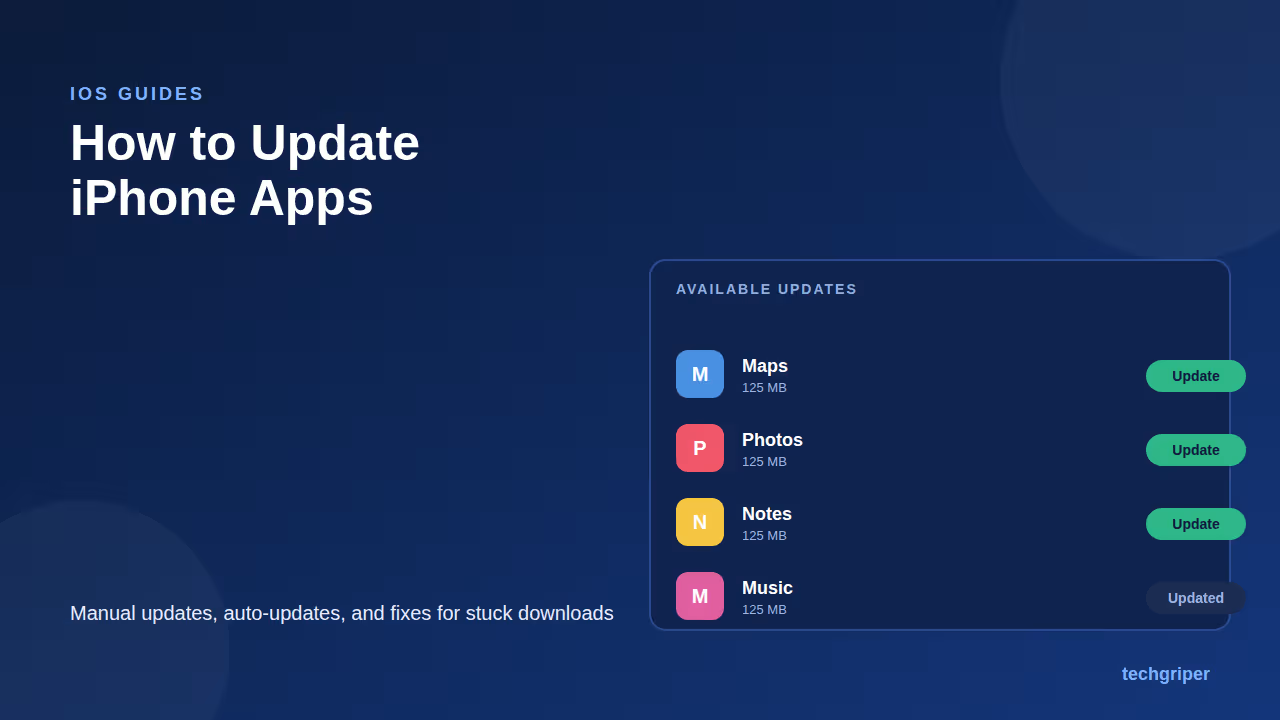
Scroll down to the Available Updates section.
Tap Update All to install every pending update.
Update a Single App
Open the App Store app.
Tap your profile picture.
Find the app you want in the Available Updates list.
Tap Update next to that specific app.
If nothing appears in the list, pull down on the screen to refresh it. Sometimes the App Store takes a moment to check for the latest available updates.
How to Turn On Automatic App Updates
Letting your iPhone handle updates in the background means you rarely have to think about this again.
Open Settings.
Tap Apps.
Tap App Store.
Turn on App Updates.
Once this is on, your iPhone downloads & installs updates automatically, typically when connected to Wi-Fi. If you’d rather manage it yourself, leave this off and you’ll get a notification whenever an update becomes available.
Allowing Updates Over Cellular Data

By default, automatic updates usually wait for a Wi-Fi connection to avoid using your mobile data. If you want updates to happen over cellular too:
Go to Settings → Apps → App Store.
Look for the cellular data option and toggle it on.
Keep in mind that large app updates can use a meaningful chunk of your data plan, so this is worth turning on only if you have enough mobile data to spare.
Manual vs Automatic Updates: Which Should You Use?
Method Pros Cons
Manual updates Full control over what installs and when Easy to forget, apps can fall behind
Automatic updates No effort needed, always current Uses storage and data without a prompt each time
For most people, automatic updates are the more practical choice. If you’re on a limited data or storage plan, manual updates give you more control over when large downloads happen.
How to Check What Changed in an Update
If you’re curious what an update actually fixed or added:
Open the App Store.
Tap your profile picture.
Find the app under Available Updates or Updated Recently.
Tap More (or the app’s listing) to read the release notes.This is useful if an app starts behaving differently after an update & you want to know what changed.
Troubleshooting: Why Won’t My iPhone Update Apps?
If updates aren’t installing, work through these checks in order:
Check your internet connection. A weak or dropped Wi-Fi or cellular connection can silently stall a download.
Check available storage. Go to Settings → General → iPhone Storage. If your phone is nearly full, updates may fail to install.
Check your Apple ID sign-in. Go to Settings and confirm you’re signed in. A session that’s logged out can block updates.
Restart your iPhone. This clears out temporary issues that block background downloads.
Check for an iOS update. Some app updates require a newer iOS version to install. Go to Settings → General → Software Update.
Offload and reinstall the app. If one specific app is stuck, go to Settings → General → iPhone Storage, select the app, and tap Offload App. This keeps your data but removes the app, which you can then reinstall fresh from the App Store.
FAQ
How do I update all apps on my iPhone at once?
Open the App Store, tap your profile picture in the top-right corner, scroll to Available Updates, and tap Update All.
Why are my iPhone apps not updating automatically?
Automatic updates need to be turned on in Settings → Apps → App Store, and usually require a Wi-Fi connection unless you’ve also enabled updates over cellular data. Low storage or a signed-out Apple ID can also block them.
Do app updates use a lot of data?
It depends on the app. Larger apps, especially games, can be several hundred MB or more per update. If you’re on limited mobile data, it’s safer to keep automatic updates restricted to Wi-Fi.
Can I stop a specific app from updating automatically?
iOS doesn’t offer a per-app toggle for automatic updates. Automatic updates are an all-or-nothing setting; if you want more control over specific apps, turn automatic updates off entirely and update manually instead.
Will updating an app delete my data or settings?
No. Updating an app installs a newer version while keeping your existing data, saved logins, and settings intact. Data loss during a normal update is not expected behavior.
What should I do if an app update keeps failing?
Restart your iPhone, confirm you have enough free storage, check your internet connection, and make sure you’re signed in to your Apple ID. If it still fails, offloading and reinstalling the app usually resolves it.
Conclusion
Keeping your apps updated is a small habit that protects your data, keeps apps running smoothly, and makes sure you’re not missing features developers have already released.
Whether you prefer updating manually through the App Store or letting your iPhone handle it automatically in Settings, the process takes only a minute to set up. If updates ever stall, working through storage, connection, and sign-in checks resolves most issues without needing to contact support.